How to print labels at home or in the office
Two ways to print labels yourself, A4 sheets or a thermal printer, with the templates, settings and alignment tips that stop wasted sheets.
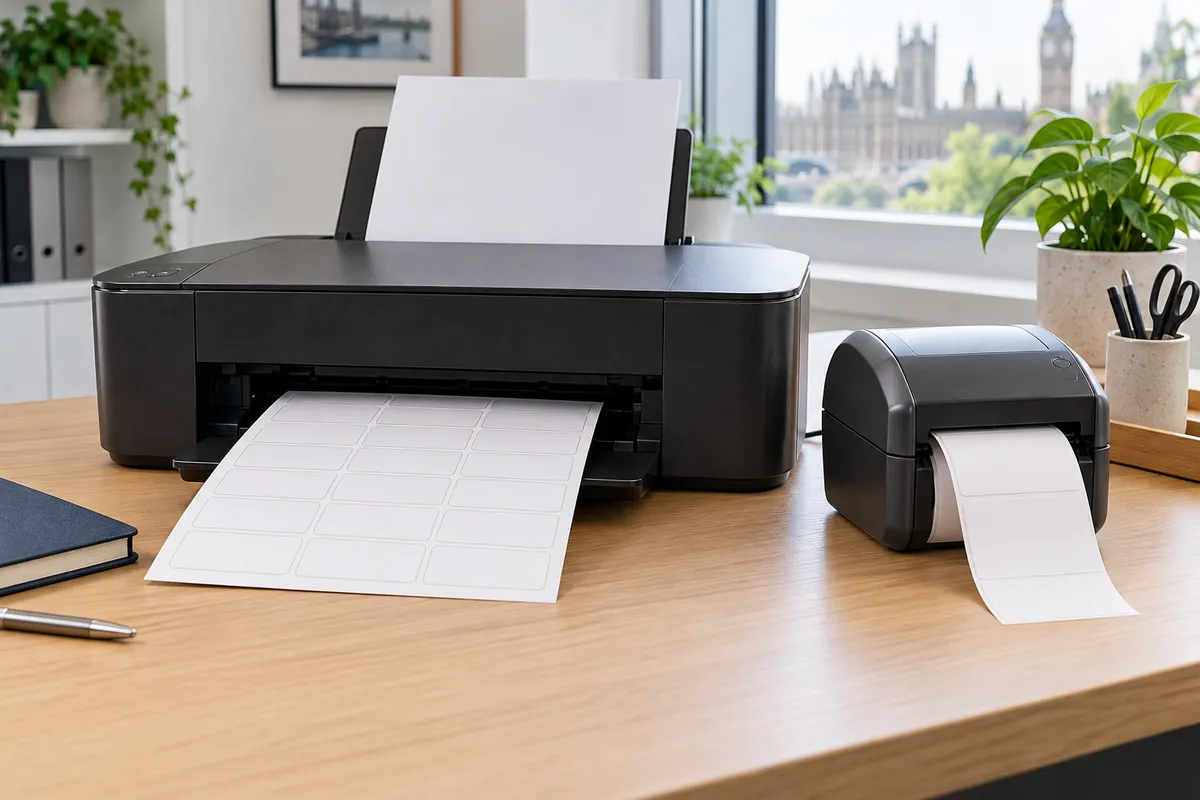
There are two ways to print labels yourself. Which one suits you depends on how many you print and how often.
| A4 label sheets | Thermal label printer | |
|---|---|---|
| Printer | the inkjet or laser printer you already have | a dedicated label printer |
| Best for | batches: addresses, jar labels, file labels | one label at a time, every day: parcels, barcodes |
| Ink | ink or toner | none (direct thermal) |
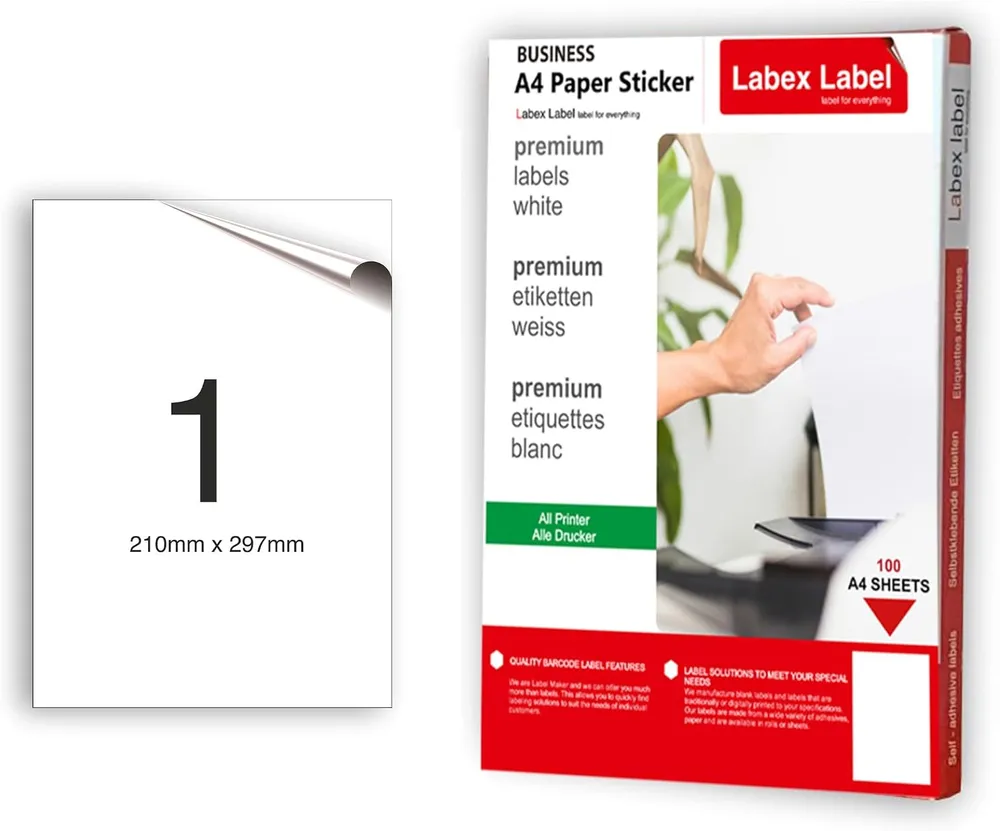
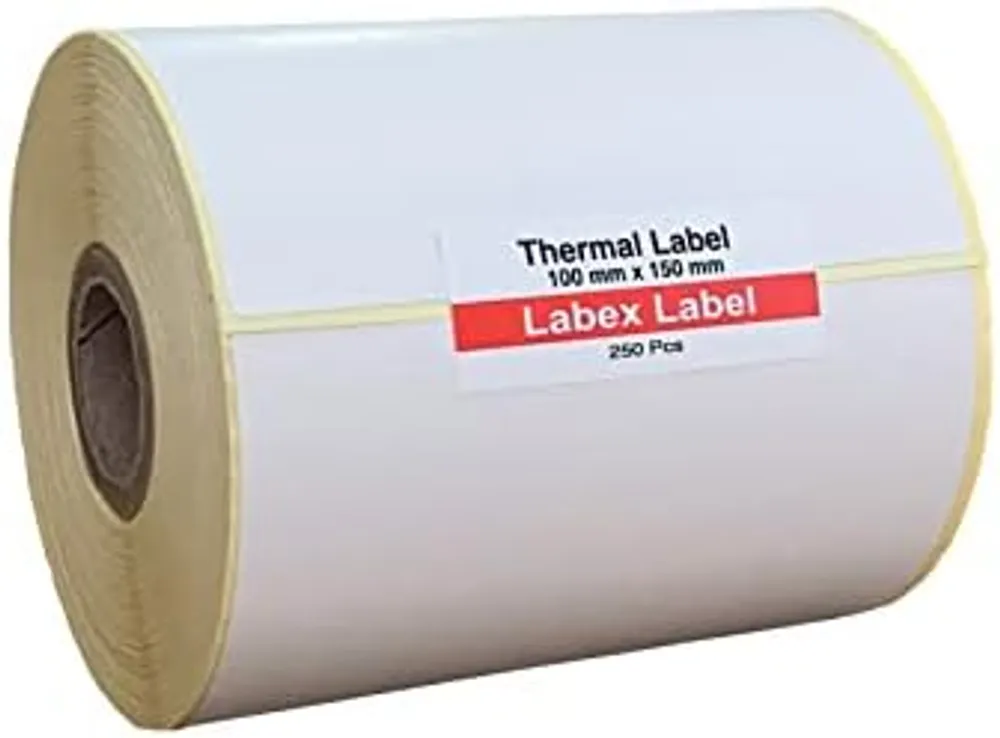
| Labels | A4 sheets, 1 to 65 per sheet | thermal labels on a roll |
Printing on A4 label sheets
- Use a template for your exact sheet. The size and layout must match, or text drifts off the labels. Our free Word and PDF templates cover every Labex A4 sheet.
- Type or mail-merge your labels in Word. Addresses from Excel are covered in how to print labels in Word.
- Print a test on plain paper first, hold it over a label sheet against the light and check the alignment.
- Set the printer correctly: paper size A4, scaling 100% (not "fit to page"), and the paper type to "labels" or a heavier paper.
- Feed one sheet at a time if your printer tends to skew, and put sheets in the right way up. More tips in how to print on A4 sticker paper.
Printing on a thermal label printer
- Load the roll so labels come out face up, and let the printer calibrate (most do it automatically, or with a button press).
- Set the label size in the printer driver, for example 100 x 150 mm for 6x4 shipping labels.
- Print from the app you already use: carrier websites (Royal Mail, Evri, Parcelforce), marketplaces, Word, or label software (see label design software).
- Check the print darkness: too light and barcodes may not scan; too dark and the print smudges.
If labels come out blank or faded, the cause is usually the roll the wrong way round or the wrong media setting: see thermal printer printing blank or faded labels.
Which should you choose?
- Fewer than a few dozen labels a week, mostly the same design: A4 sheets.
- Parcels or barcodes every day: a thermal printer saves ink and time.
- Hundreds or thousands of identical labels with your logo: have them printed for you on a roll, see printed roll labels.
FAQ
Can I print labels on a normal printer?
Yes, on A4 label sheets with an inkjet or laser printer. Use a template that matches your sheet and print at 100% scale.
Why are my labels not lining up?
Usually the template does not match the sheet, or the printer is scaling the page. Set scaling to 100% and test on plain paper first.
Do thermal label printers need ink?
Direct thermal printers do not need ink or ribbon. Thermal transfer printers use a ribbon.