How to make and print labels in Word (templates and mail merge)
The same label across a whole sheet, or a different address on every label: the Word method, step by step.
Word has made labels for years, but the feature is a little hidden. Here are the two most common jobs. Menu names may differ slightly between Word versions.
1. The same label on the whole sheet
- Go to the Mailings tab > Labels.
- Type your text (name, return address, "Fragile"…).
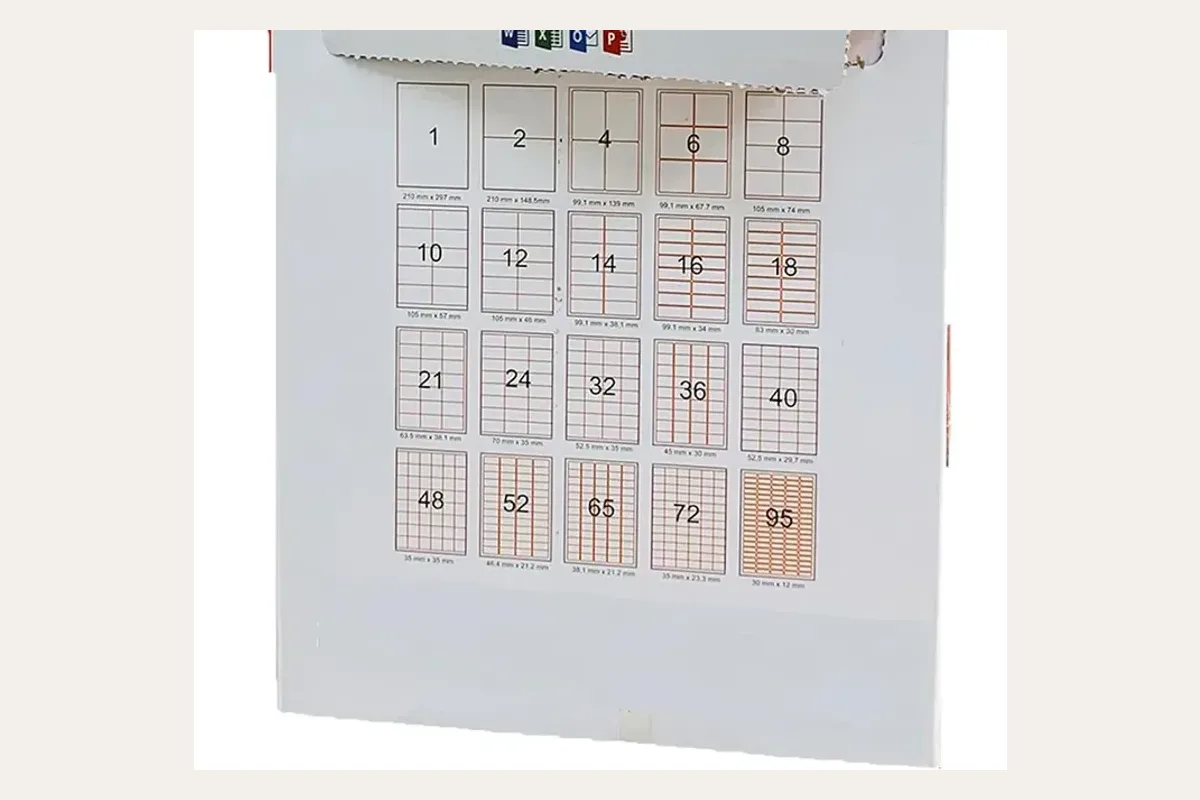
- Under Options, pick the vendor and product number of your sheets. If yours isn't listed, click New Label and enter the measurements yourself: top and side margins, label height and width, vertical and horizontal pitch, and the number of labels across and down.
- Choose Full page of the same label, then New Document.
2. A different address on each label (mail merge)
- Set up an Excel sheet with one row per contact and clear columns: Name, Address, Postcode, Town.
- Mailings > Start Mail Merge > Labels, then choose your format.
- Select Recipients > Use an Existing List and open the Excel file.
- In the first label, add fields with Insert Merge Field.
- Click Update Labels to copy the layout to every label.
- Finish & Merge > Edit Individual Documents. You get a normal document you can check before printing.
Tip: under Table Layout, switch on View Gridlines so you can see the edge of each label.
One large A4 label?
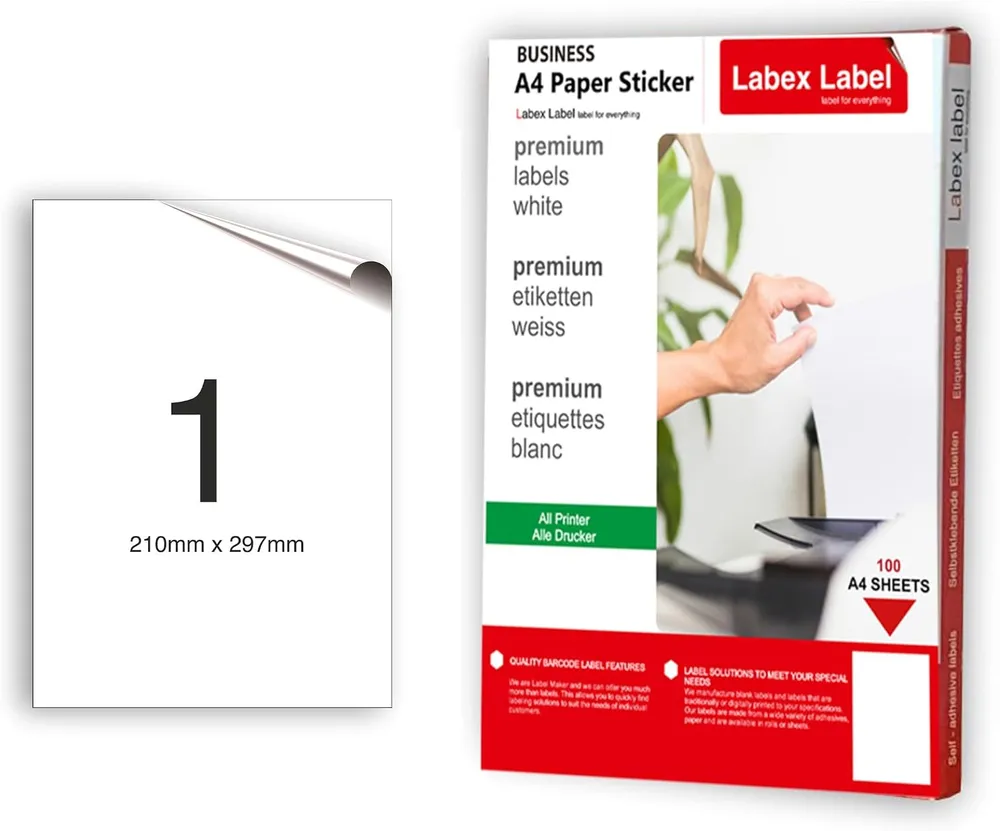
No template needed. With our A4 labels, 210 x 297 mm, a normal A4 document does the job. Leave a 4–5 mm margin, because office printers can't print right to the edge. Printer settings such as which way up the sheet goes and the paper type are covered in how to print on A4 sticker paper.
Word with a thermal printer
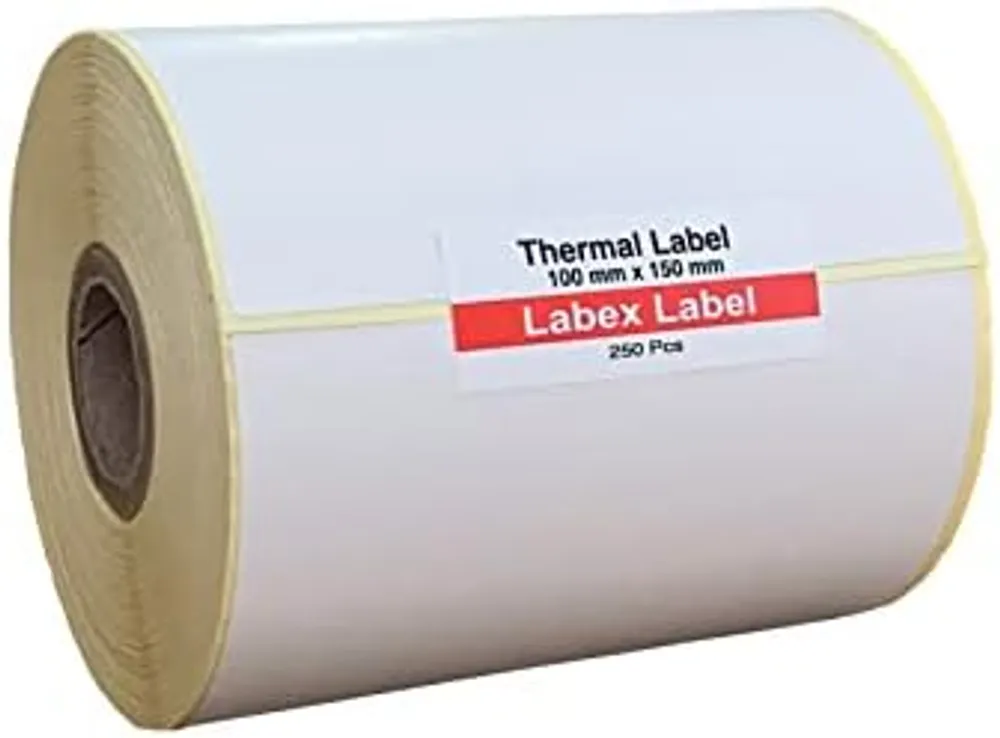
Word can print on rolls too. Under Layout > Size > More Paper Sizes, enter the label size, for example 100 x 150 mm (6x4"). Set margins of 2–3 mm and choose the same size in the printer preferences. If you print shipping or barcode labels every day, dedicated label software is quicker (see how to make barcode labels).
FAQ
How do I make labels in Word?
Mailings > Labels. Type your text, choose the format under Options, select 'Full page of the same label' and click New Document.
How do I print addresses from Excel onto labels?
Use mail merge: Start Mail Merge > Labels, Select Recipients > Use an Existing List, insert the fields and click Update Labels.
My label size isn't in the list. What now?
Click New Label under Options and enter your sheet's measurements: margins, label size, pitch and the number across and down.