How to print shipping labels from your phone
Selling from your phone? You can print your shipping labels from it too, without touching a computer. Here's how.
Plenty of selling now happens entirely on a phone: listing, messages, payment. It would be a shame to switch on a computer just to print the label.
What you need
- a Bluetooth (or Wi-Fi) thermal printer, 4-inch for parcel labels;
- the printer manufacturer's app;
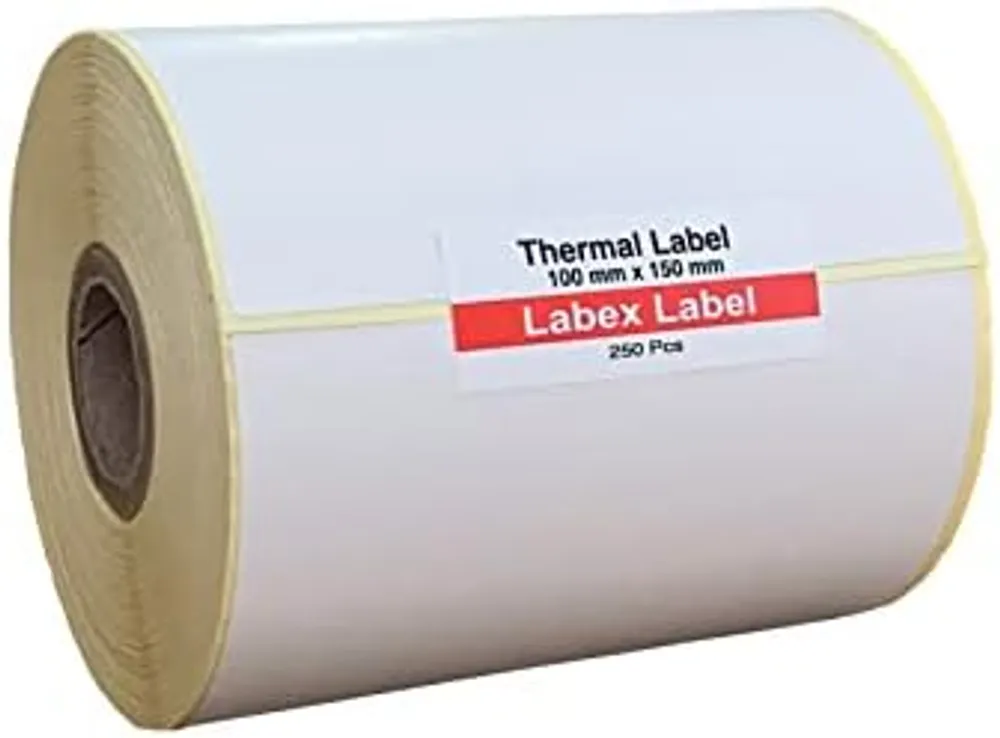
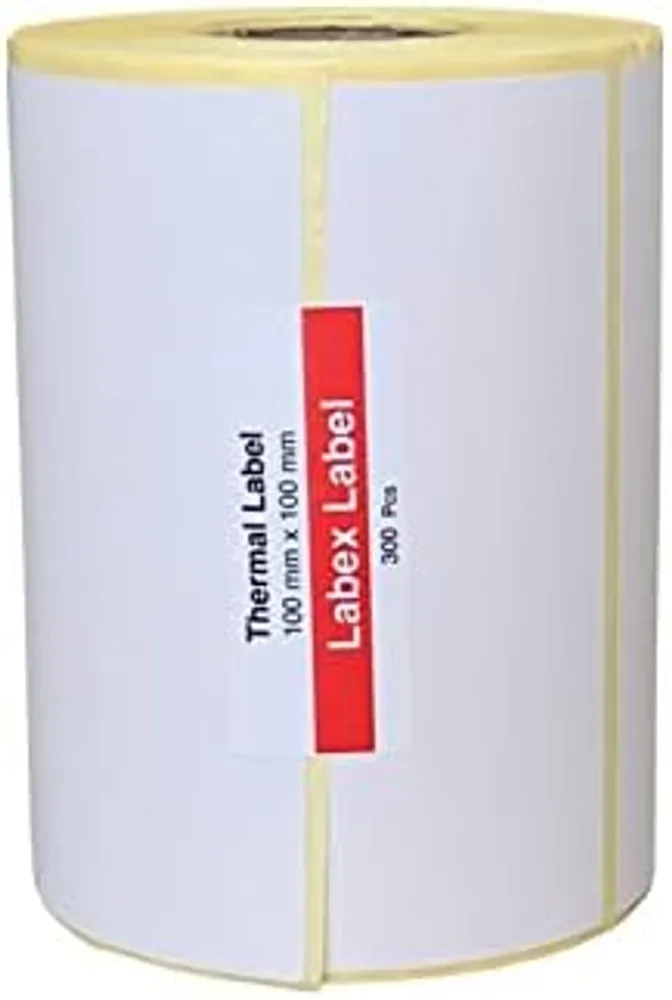
- a roll of 100 x 150 mm (4x6) labels.
On both iPhone and Android, most thermal printers don't print through the phone's standard print menu. Their own app sends the label to the printer.
Step by step
- Download the label from the app or website (Vinted, eBay, Royal Mail Click & Drop, Evri…). It saves as a PDF or opens in your browser.
- Share the PDF to the printer app using the “Share” button.
- Choose 4 x 6 in / 100 x 150 mm in the app and check the preview: the label should fill the area without big white margins.
- Crop if needed: if the PDF is laid out for A4, most apps let you zoom into the label area.
- Print, peel and stick.
Common snags
- The printer doesn't show up: pair it from inside the printer app, not just in your phone's Bluetooth settings.
- The print is shifted: recalibrate after every roll change.
- The barcode is tiny: you're printing a whole A4 page scaled down. Crop to the label first.
No printer at all?
Depending on the carrier, Vinted and some drop-off networks give you a QR code to show at the counter instead. Handy now and then; once you're shipping regularly, your own printer saves a lot of time.
For computer settings, see our guide to printing Royal Mail, Evri and Vinted labels.
FAQ
Can I print shipping labels from an iPhone?
Yes, with a Bluetooth or Wi-Fi thermal printer and its manufacturer's app. You share the PDF from the carrier's app to the printer app.
Which size do I pick in the printer app?
4 x 6 in (100 x 150 mm) for parcel labels.
Why does my label print really small?
The PDF contains a full A4 page. Crop to the label area in the app before printing.