Free label design software for Zebra printers: your options
You probably don't need to buy label software. Here are the free routes to designing labels for a Zebra desktop printer, and when each one fits.
Bought a Zebra desktop printer and wondering what to design labels in? Before paying for software, try the free options. Which one suits you depends on what you print.
1. Shipping labels: no design software at all
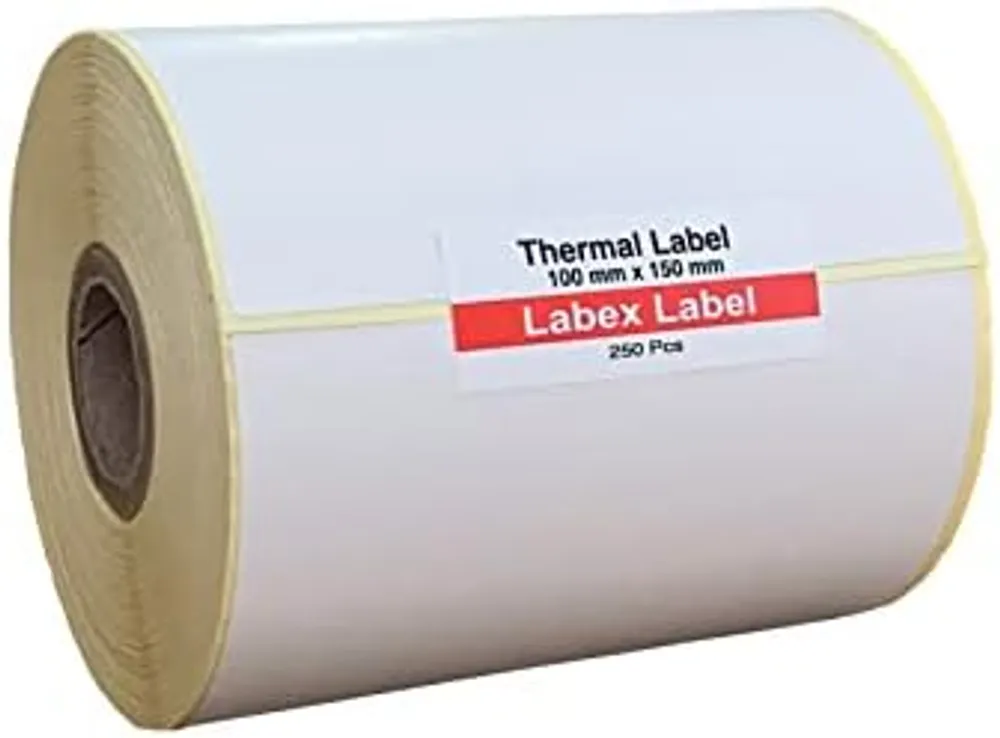
If you mainly print courier labels, you don't design anything. Royal Mail Click & Drop, marketplaces and most shipping platforms produce the label for you as a 6x4 PDF or send it straight to the printer. You just need the printer driver installed and the label size set to 4 x 6 in (100 x 150 mm). See how to print shipping labels on a thermal printer.
2. ZebraDesigner Essentials (free from Zebra)
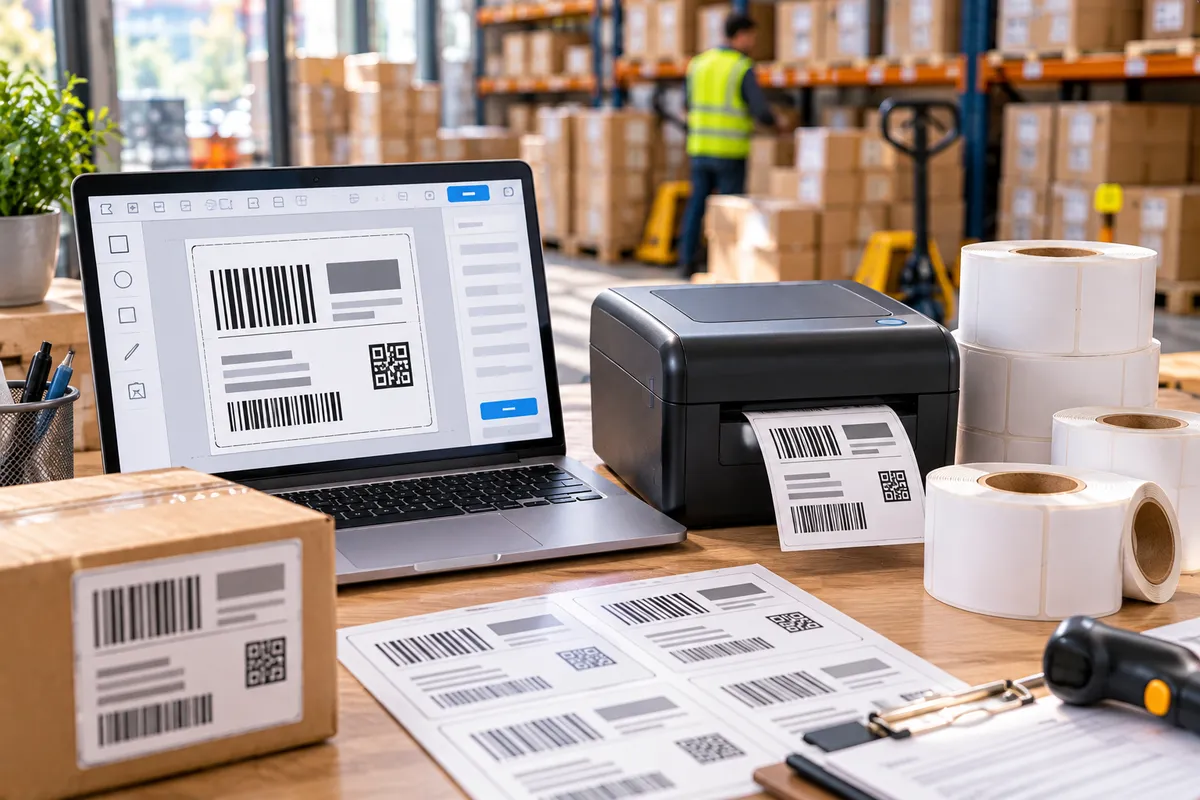
Zebra offers a free edition of its label design software, ZebraDesigner Essentials, for its printers. It covers what most small businesses need:
- text, lines, boxes and images;
- common barcodes such as EAN-13, Code 128 and QR codes;
- counters and dates;
- saving label templates to reuse.
Check Zebra's website for the current version and which operating systems it supports. The paid editions add things like database connections.
3. Word or Excel through the printer driver
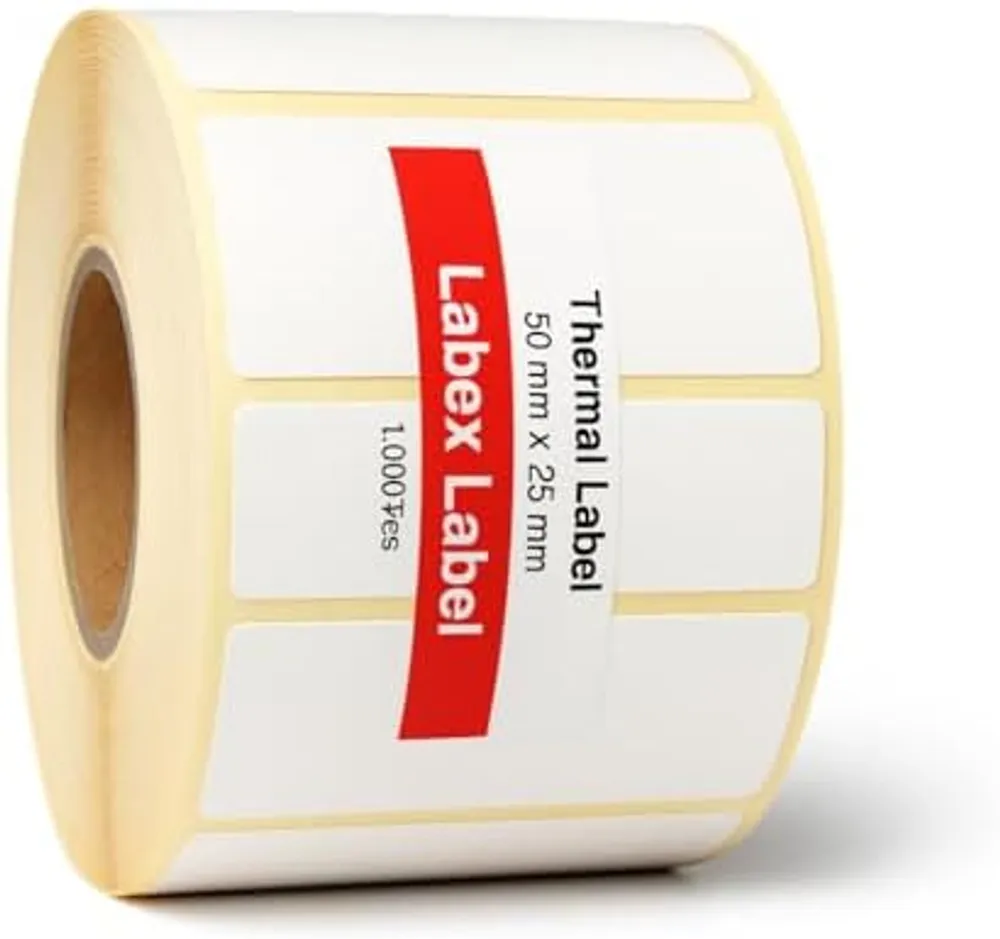
With the Zebra driver installed, the printer appears like any other printer. In Word, set a custom page size matching your label (for example 50 x 25 mm or 100 x 150 mm), set small margins, and print. It's fine for occasional text labels. For barcodes and lists, a label program is easier.
4. Your shop or stock system
Many e-commerce, stock and point-of-sale systems can print product, price or FNSKU labels straight to a Zebra printer. Look in the settings for a "label printer" or "ZPL" option. For Amazon labels, see FNSKU labels for Amazon FBA.
5. ZPL for the technically minded
Zebra printers speak ZPL, a simple text language for labels. If you or your developer generate labels from your own system, you can send ZPL directly. Online ZPL viewers let you preview a label before printing.
Getting the settings right
Whatever software you use, three settings make the difference:
- Media type: direct thermal (no ribbon) for our direct thermal labels.
- Label size exactly as on the roll, for example 100 x 150 mm.
- Calibration after loading a new roll, so the printer finds the gaps between labels.
Labels printing blank, faded or misaligned? See thermal printer troubleshooting.
FAQ
Is there free label software for Zebra printers?
Yes. Zebra offers a free edition, ZebraDesigner Essentials, and you can also print from shipping platforms or from Word through the printer driver.
Do I need label software to print shipping labels?
Usually not. Shipping platforms create the 6x4 label for you; you only need the printer driver and the right label size.
What is ZPL?
Zebra Programming Language: a text format that describes a label. Systems can send it straight to a Zebra printer.